For as long as I have been using Intel or AMD based computers as a hobby and professionally, different versions of Microsoft Windows have been the constant operating system running everything. I started, like many of my generation, on Windows 95, learning the joy of dial-up networking, floppy disks, and juggling IRQ jumpers to get a sound card to work without a full system rebuild. Through every subsequent release, 98, 98SE, XP, 7, 8, 10, and finally Windows 11, my development workflow, habits, and even muscle memory were shaped by the ecosystem created by Microsoft.
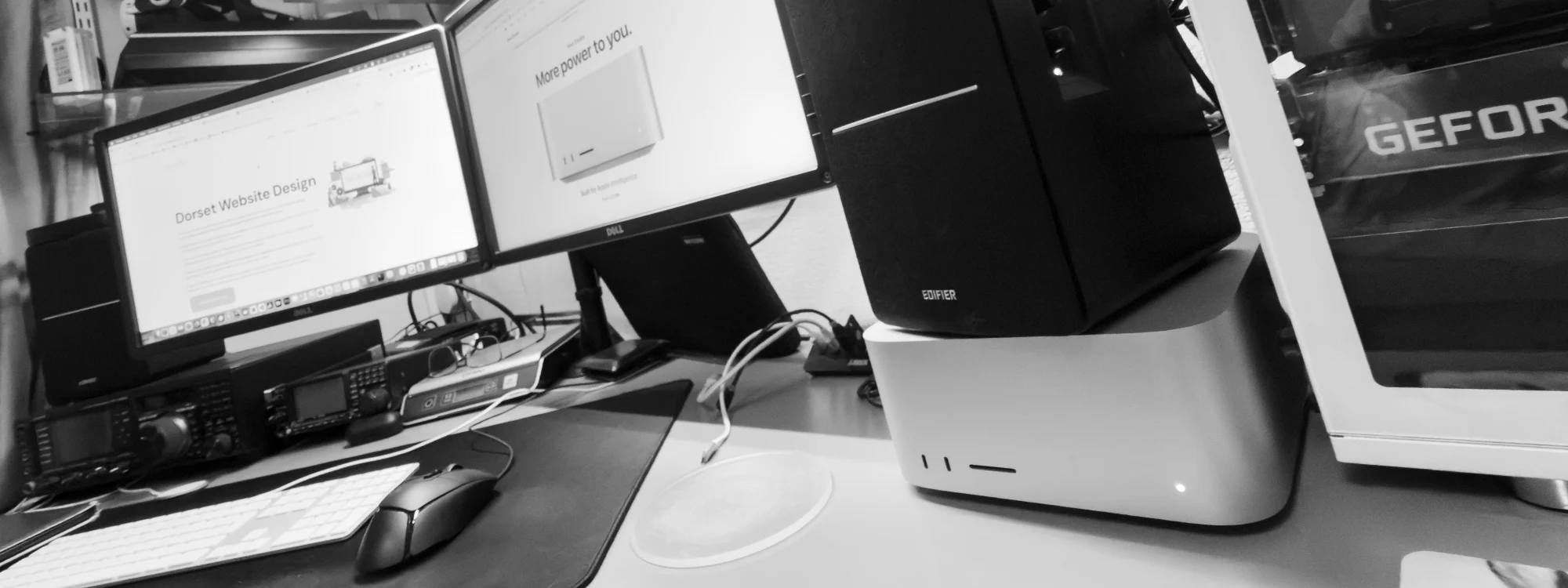
In 2026, after more than thirty years on the platform and increasing problems and bugs with the often updated Windows 11, I made what felt like a big decision: my primary machine would become a Mac Studio, built by Apple running macOS Tahoe 26.3. I already use an Apple iPhone and iPad so am used to some of the Apple ecosystem.
This major change required a lot of planning and modification of the way I perform my daily tasks and work with many custom written Windows apps and utilities being rewritten using .NET Core so they could run on the Mac.
A lot of my day-to-day work involves maintaining classic ASP.NET applications and websites that pre-date .NET Core and still rely heavily on traditional Windows infrastructure. Moving that workload to macOS has been equal parts frustrating, and rewarding when it all works.
The Mac Studio is not my first Apple computer, in 2008 I purchased a Mac Tower with a dual core Xeon processor for video editing projects using Final Cut Pro and I dual booted this between OSx and Windows depending on the projects being used, but this machine was prone to the ram failing and with the cost of ram for the machine being very expensive, when the final memory modules failed, it was more cost effective to replace it with a pure Windows system than to buy another Apple Mac.
My brother Andrew (https://andrewdorey.com/) switched to Mac a few years ago and has been a huge help with the transition from Windows to the Mac environment and ecosystem.
My previous daily Windows computer had a 12th gen Intel i7 processor with 64Gb ram and had a pair of 2Tb Nvme drives installed. Whilst the hardware was still fast, the “upgrades” to Windows 11 seemed to make the computer slower and slower with every OS update.
The new Mac Hardware
As Apple computers do not have any options for user memory or storage upgrades, I had to order the computer with the highest specification I could afford and use external storage to complement the internal soldered drives.
After comparing the Mac Mini with the M4 processor and the Mac Studio with the M4 Max cpu, I decided to go for the Mac Studio mainly due to the additional connectivity on the back of the computer and the option of the M4 Max chip with the 16 core CPU and 40 core GPU. 64 GB ram was included and for storage I choose a 1TB drive.
Having 4TB internally would have been nice but Apples prices for storage and ram are much higher than normal drive prices and changing from 1TB to 4TB would have been an additional £1000 compared to buying a Nvme drive and installing it into a thunderbolt caddy which would have been almost half the cost.
 My two monitors are Dell 4K models use Display Port inputs and I needed to be able to connect these to the Thunderbolt ports on the Mac. I found the Startech.Com Thunderbolt 3 To Dual Displayport adapter from Amazon which supports dual 4K displays at 60 Hz and this allowed me to only use one Thunderbolt port to run both screens.
For external storage I purchased a OWC Express 1M2 Enclosure from Scan and installed a spare 2TB samsung Nvme drive from my gaming pc. If I need additional storage in the future, this drive caddy will allow easy updates if the price for storage ever drops again.
 A UGREEN USB C Hub, Slim USB C to USB Adapter with 4 USB type A ports allowed me to connect all the other USB devices to the computer from Amazon.
For inputs I had a 6 month old Cherry keyboard but the new Mac had problems recognizing this and everytime I restarted it would launch the keyboard wizard and not understand the keyboard layout. I had an old Apple full size wired keyboard so I was able to go back to using a slim keyboard again which is taking a while to get used to again.
My Logitech wireless mouse which had been running flawlessly under different versions of Windows and on different computers for several years would not run smoothly on macOS and would randomly freeze. I was using its own Logitech dongle so it wasn't a bluetooth issue. I had to purchase a wired mouse to be able to use the computer,
Getting things running and dealing with applications and files
File Management
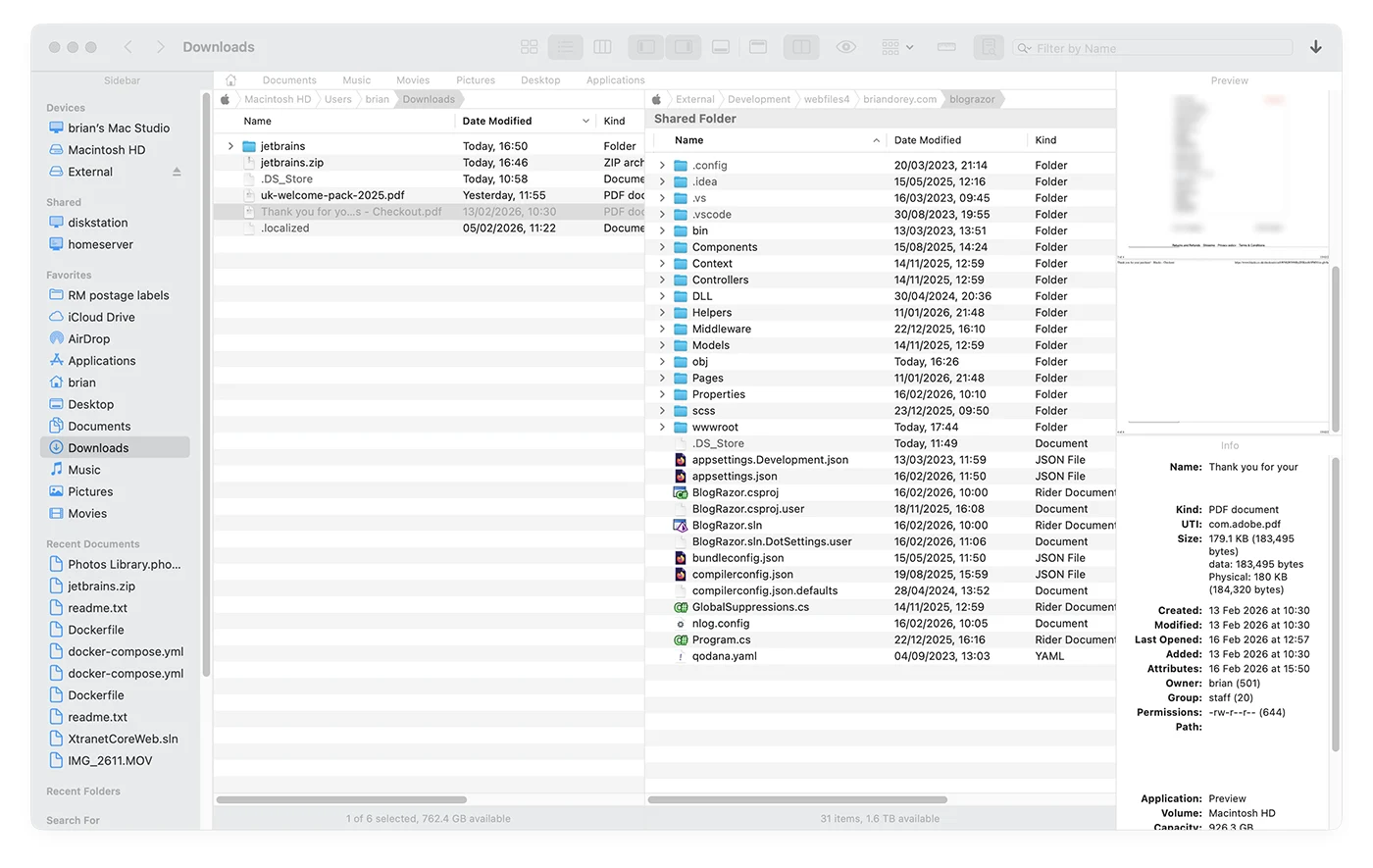
Mac’s Finder file manager seemed very basic after years of using Windows File Explorer and after setting up the new computer, I immediately looked for alternatives to Finder.
PathFinder from cocoatech.io was highly recommended and I have found this to be much better than the stock Finder application dealing with file management.
For email, I had used Microsoft Office and Outlook since Microsoft Office 97 and so moving all the historic email to a new platform was a challenge.
We run a small Linux server in the house which runs our PiHole adblocker, docker and Home Assistant so adding an IMAP server to this seemed the best choice. Our main web servers still deal with sending and receiving emails but the local hosted version keeps all historic emails inside the network and fetches new messages from the web server at set intervals.
I was able to transfer all the emails from the old Outlook .PST datafiles to the IMAP mailboxes and these are accessed using macOS’s Mail application.
Daily backups are also simpler for the mailboxes now they are all hosted on the same computer for all the accounts used in the house.
Replacing Microsoft Office
A few years ago I switched from using Microsoft Word and Excel to using LibreOffice for word processing and spreadsheets and as this is also available on macOS, this was an easy transition. Download from libreoffice.org.
Replacing the Adobe Creative Suite
I have used the Adobe Creative Suite applications for many years starting with Photoshop, Illustrator and Dreamweaver, buying each new Creative Suite as they were released until CS6 which was the final version before Adobe switched to the subscription model which was much more expensive.
A few years ago I started to pay for the Photoshop only subscription to be able to work on photos from our latest Canon DSLR cameras and continued to use the CS6 version of Illustrator to work with legacy vector files.
In 2025 I tried the vector and photo editing software from Affinity https://www.affinity.studio/ and found it was suitable for everything I needed to do with vector files and much lower cost than the Adobe suite, it is also available on both Windows and Mac making this a simpler upgrade.
Replacing Microsoft Visual Studio
Visual Studio was going to be a more difficult replacement as I had used it almost daily since the late 1990s.
Microsoft stopped supporting Apple Macs for the full Visual Studio a few years ago and now only have the basic Visual Studio Code for both operating systems.

Jetbrains Rider was the only solution I found to be able to easily work on newer .NET Core applications and also open and update previous ASP.NET websites using webforms.
The ASP.NET Problem: Decades of legacy projects and code
Classic ASP.NET was designed to run on Windows. It assumes:
- IIS as the web server
- Full .NET Framework availability
- Case-insensitive file systems
- Windows authentication models
- Tight integration with SQL Server
macOS, by contrast, is fundamentally Unix-based. There is no IIS and the older traditional .NET Framework does not run natively.
This left me with some different choices depending on the project I am working on.
To make development to continue to be viable, I ended up with a hybrid approach:
1. Modern .NET Core Upgrades
Where applications could be rebuilt into running on the cross-platform runtime, development, it works surprisingly well. The command-line tooling and JetBrains Rider are actually faster and cleaner than the old Visual Studio workflows.
Using Docker to host an instance of Microsoft SQL server, this initially had issues but after work we found a way to run the databases with the full text search services.
The Mac feels faster when:
- Running builds from the terminal and in Rider.
- Managing packages
- Automating tasks with shell scripts
- Using lightweight editors or cross-platform IDEs
2. Dealing with the Legacy WebForm projects
For truly legacy projects (WebForms, old libraries, Windows-only dependencies), a Windows Virtual Machine or remote hardware is unavoidable.
I still have several large and bespoke older ecommerce websites running on the ASP.NET Webforms platform and it is currently not feasible to rebuild these to run on .NET Core at this time.
In order to be able to continue to work on these older projects which also use Microsoft SQL Server, I had a choice, install a virtual machine to run Windows 11, IIS and database server or use an older spare Windows machine to run it on native hardware.
I tried using Parallels and VMWare on the Apple Silicone hardware but found a few issues with the operating system and IIS when trying to map drives on the Mac file system. After a frustrating few days, I decided to reuse an older Dell Micro computer as a host computer and control it via Remote Desktop.
This could be installed with a duplicate of the software used on our web servers and edit websites directly over the local network when working on legacy websites.
The development Dell machine now lives under my desk and only uses a power and network connection.
Maintaining legacy ASP.NET from macOS has forced me to relook at the legacy projects and make decisions on the future:
- What must remain?
- What can be modernised?
- What should be retired?
The platform change became an opportunity to reassess legacy code accumulated since the early 2000s and has pushed me to look at more modular projects for the future.
Running Docker, Docker Desktop and Docker Images
To work with the current .NET Core websites and projects, I needed to be able to run Microsoft SQL Server databases on the new Apple hardware.
To do this, I am using Docker and a customised docker script to create a Docker image which includes the full text search options.
A folder was created on my external drive for docker and a sub foldercalled mssql, in this folder two files are created called docker-compose.yml and Dockerfile.
The docker-compose.yml contains:
services:
  sqlserver:
    build: .
    platform: linux/amd64
    container_name: mssql
    ports:
      - "1433:1433"
    environment:
      ACCEPT_EULA: "Y"
      MSSQL_SA_PASSWORD: "yoursqlpassword"
      MSSQL_PID: "Developer"
    volumes:
      - ./mssql-data:/var/opt/mssql
    restart: unless-stopped
The Dockerfile contains:
FROM mcr.microsoft.com/mssql/server:2022-latest

# Switch to root so we can install packages
USER root

# Install the Microsoft repo and FTS package
RUN apt-get update && \
    apt-get install -y gnupg curl apt-transport-https && \
    curl https://packages.microsoft.com/keys/microsoft.asc | apt-key add - && \
    curl https://packages.microsoft.com/config/ubuntu/22.04/mssql-server-2022.list \
      -o /etc/apt/sources.list.d/mssql-server-2022.list && \
    apt-get update && \
    apt-get install -y mssql-server-fts libsasl2-2 && \
    apt-get clean && \
    rm -rf /var/lib/apt/lists/*

ENTRYPOINT ["/opt/mssql/bin/sqlservr"]
This is installed using:
docker compose up -d --build
Powershell to Bash scripts
On my Windows computers, I had several Powershell scripts which performed daily tasks such as backups, data management and other utilities. These all needed to be rewritten to work with the Unix style operating system.
Keyboard Shortcuts: Thirty Years of Muscle Memory
After decades of using Ctrl+C, Ctrl+V, I decided it was easier to remap the Command key to Ctrl than try to relearn how to copy and paste.
Dealing with Backups
On my Windows computer, I had used an application called SmartSync Pro which synchronised folders or drives with a remote target such as an external hard drive or network storage. I have found a few different applications on macOS which do this but any recommendations for backup solutions which maintain the file system structure would be appreciated.
My feelings after the first two weeks
The past two weeks since the new Mac Studio arrived have often been frustrating with what used to be simple tasks taking much longer and things such as pressing the delete key on the keyboard not deleting a file as it once did in Windows.
Once I got over the initial friction of file management and installing applications to make the machine usable for work I found the operating system to be simpler for daily tasks but needing to use the terminal to do more complex tasks such as creating scheduled tasks which it seems cannot be done using the user interface on Mac.
I found the Mac hardware to be much better than the older Windows machines with the Mac Studio being exceptionally quiet and responsive, even under heavy build loads. On the Windows computer rendering video would result in all the fans spinning up and being noisy but the Mac is silent.
Moving to a Mac Studio as my full-time machine hasn’t meant abandoning Windows or classic ASP.NET but realising that it was time for me to progress with my work to the latest technologies and retire some of the legacy things I have been putting off for many years.
If you’re considering a similar move while maintaining legacy ASP.NET projects, I’d be interested to hear how you’re approaching it and how you deal with looking after older projects on newer operating systems.







Felix Rusu
Wow, is .net still a thing?
Although I got bored of computer science and transitioned to engineering in college, in my first career decade I worked as an enterprise software engineer entirely on .NET + all big name add-ons you can think of, doing from banking to mainframe wrappers and cutting edge web stuff.
So seeing the word "JETBRAINS" in your post for the first time in like 10 years, my eye twitches and all kinds of related anxiety and nausea come back now ;-)
What a load of garbage .NET was, how horrendous and buggy and convoluted, and how I can thank the Lord he has saved me from that MS VB ASP/.NET hell. I will say the kind of hardcore T-SQL stored procs we did made me feel like I had superhero powers but nothing else wants me to ever touch .net.
But OSX? Why not Linux if you're going through the hurdles? Why marry yourself to an ecosystem that is progressively going down the drain also?