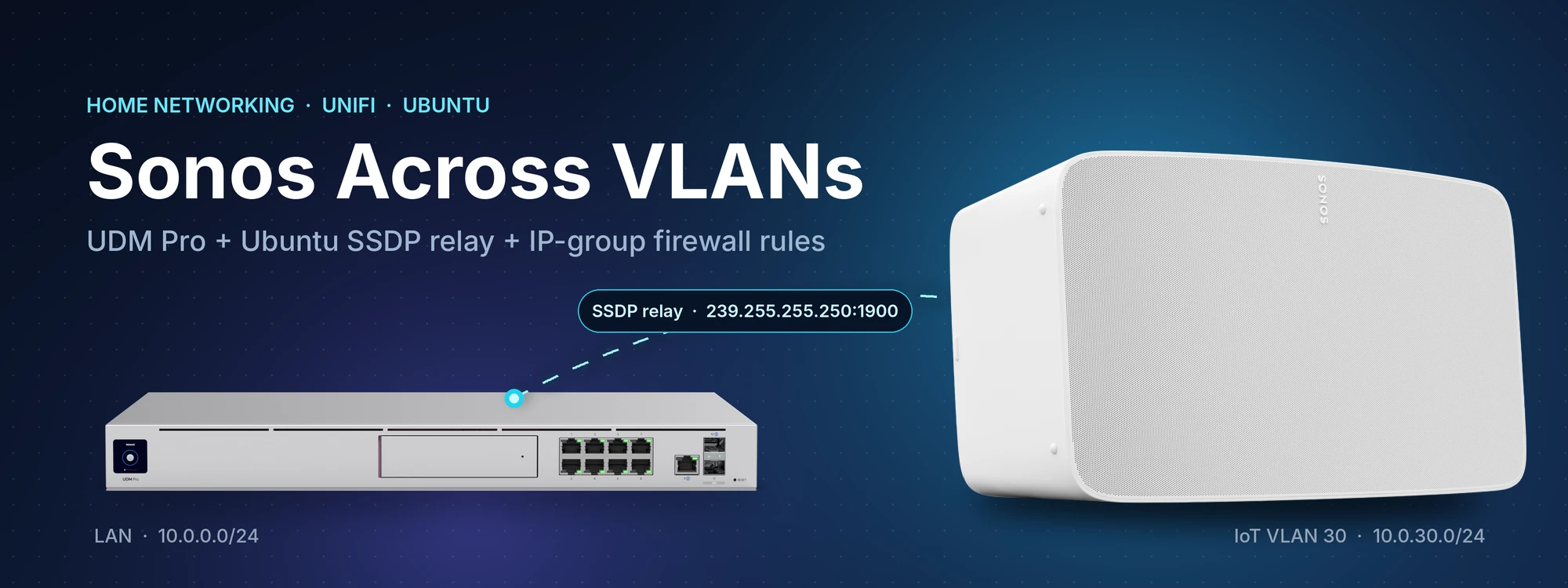
We have recently been reorganising our home network to separate IoT devices onto their own VLAN and WiFi SSID with limited internet access. One limitation with this plan was finding that our Sonos speakers could no longer communicate with our computers and tablets which we use to control the speakers as the Sonos software cannot easily communicate across VLAN’s without additional software to relay the discovery traffic and firewall rules.
After a lot of research and experimentation we found the following method to allow us to control the Sonos speakers on different VLAN’s
This guide covers the full working setup for using the Sonos app on the main LAN to find and control Sonos speakers on a separate IoT VLAN. It has three parts:
- An Ubuntu server relays the discovery traffic (SSDP and the Sonos setup broadcasts) between the networks.
- The UDM Pro relays mDNS, routes between the VLANs, and firewalls them.
- The firewall rules are based on devices, not ports. Only the Sonos speakers and the devices running the Sonos app can talk to each other, on any port. The rest of the IoT VLAN stays blocked.
Why device-based rules?
Sonos doesn't publish a complete list of the ports it uses. The current app and speakers also use random high ports that aren't on Sonos's official list, so firewall rules based on ports keep breaking. Allowing all traffic between fixed IP groups works reliably and still keeps the IoT VLAN isolated from everything else.
How discovery works
| Traffic | Port | Address | Purpose | Handled by |
|---|---|---|---|---|
| SSDP | UDP 1900 | multicast 239.255.255.250 | Sonos app finding speakers | Ubuntu relay |
| Sonos setup | UDP 6969 | broadcast | Adding new speakers | Ubuntu relay |
| mDNS | UDP 5353 | multicast 224.0.0.251 | AirPlay, Spotify Connect, newer models | UDM Pro mDNS proxy |
The UDM's mDNS proxy doesn't relay SSDP, so the Ubuntu relay is still needed. Once a device has been discovered, everything else is unicast traffic routed by the UDM and allowed by the IP-group policies.
Network layout
My network is using the following IP ranges, you can change this to suit your own network.
| Network | Zone | Subnet | Ubuntu server interface / IP |
|---|---|---|---|
| Default (untagged): Macs, PCs, phones | Internal | 10.0.0.0/24 | enp1s0 / 10.0.0.2 |
| VLAN 30 (tagged): Sonos speakers | IoT | 10.0.30.0/24 | vlan30 / 10.0.30.5 |
Router: UDM Pro at 10.0.0.1 (Default) and 10.0.30.1 (VLAN 30).
Part 1 - UDM Pro: network settings
1a. Networks
In Settings → Networks:
- mDNS / Gateway mDNS Proxy: enable it for Default and VLAN 30. Use the custom option to select both networks if you have it.
- IGMP Snooping: enable it for Default and VLAN 30.
- Open the VLAN 30 network and make sure Isolate Network is off.
1b. Wi-Fi
On every SSID used by the speakers or the devices running the app:
- Multicast and Broadcast Control (also called "Block LAN to WLAN Multicast and Broadcast Data"): off
- Client Device Isolation: off
1c. Switch port for the Ubuntu server
Set the server's switch port to Native VLAN: Default and Tagged VLANs: VLAN 30 (or Allow All).
If the server is a VM, the hypervisor must pass VLAN tags through:
- Proxmox: bridge-vlan-aware yes on vmbr0, and no VLAN tag on the VM's NIC.
- Hyper-V: Set-VMNetworkAdapterVlan -VMName -Trunk -AllowedVlanIdList "30" -NativeVlanId 0
- ESXi: port group VLAN ID 4095.
Part 2 - UDM Pro: fixed IPs and IP groups
2a. Give every device a fixed IP
For each Sonos speaker and each device that runs the Sonos app (Mac, phones, tablets, PCs):
- Go to Clients, select the device, and open Settings.
- Turn on Fixed IP Address and enter an address.
- Pick addresses outside the DHCP pool. Using a block for each group helps, for example:
Speakers: 10.0.30.50–10.0.30.79
Controllers: 10.0.0.50–10.0.0.79
Sonos speakers hold on to their DHCP lease. Power-cycle each speaker after reserving its IP so it picks up the new address.
For phones, turn off Private Wi-Fi Address (iOS) or Randomised MAC (Android) for your home network. Otherwise the phone's MAC address changes, and the fixed IP won't apply to it.
2b. Create the IP groups
Go to Settings → Profiles → IP Groups. In some versions this is Port and IP Groups, or "Objects" in the zone-based firewall.
| Group name | Type | Members |
|---|---|---|
| Sonos Speakers | IPv4 Address/Subnet | Every speaker's fixed IP (e.g. 10.0.30.88, …), or a range such as 10.0.30.50-10.0.30.79 |
| Sonos Controllers | Controllers IPv4 Address/Subnet | Every app device's fixed IP (e.g. 10.0.0.11 for the Mac, PC's, phones, tablets) |
Whenever you add a new speaker or a new device running the app, give it a fixed IP and add it to the right group.
Part 3 - UDM Pro: firewall policies
3a. Zone-based firewall (UniFi Network 9 and later)
Go to Settings → Security → Firewall (Zone-Based Firewall / Policy Engine) and create two policies.
Policy 1 - Sonos Controllers → Sonos Speakers
| Setting | Value |
|---|---|
| Name | Sonos: controllers to speakers |
| Action | Allow |
| Source zone | Internal |
| Source | IP Group Sonos Controllers |
| Destination zone | IoT (the zone VLAN 30 is in) |
| Destination | IP Group Sonos Speakers |
| Protocol | All |
| Port | Any |
Policy 2 - Sonos Speakers → Sonos Controllers
| Setting | Value |
|---|---|
| Name | Sonos: speakers to controllers |
| Action | Allow |
| Source zone | IoT |
| Source | IP Group Sonos Speakers |
| Destination zone | Internal |
| Destination | IP Group Sonos Controllers |
| Protocol | All |
| Port | Any |
Notes:
- Both policies must sit above any block policies between Internal and IoT. Custom policies are evaluated in the order listed.
- Policy 2 is required. The speakers reply to the app's searches with unicast packets, and they open their own connections back to the app (for example on TCP 3400/3401/3500 for event updates). The UDM never saw the original search because it went through the Ubuntu relay, so these packets don't count as return traffic.
- Set the protocol to All. If you choose TCP/UDP with a port list, the same ports apply to both protocols, which blocks the UDP replies to random high ports.
- Leave the zone's default IoT → Internal = Block in place. Only the speakers can reach the Internal network, and only your app devices.
3b. Legacy firewall (UniFi Network 8 or earlier)
Create the same two rules under Settings → Firewall & Security → Firewall Rules → LAN In:
- Allow all protocols, source Sonos Controllers, destination Sonos Speakers
- Allow all protocols, source Sonos Speakers, destination Sonos Controllers
Place both rules above any "block inter-VLAN" rule.
Part 4 - Ubuntu server: connect to VLAN 30
4a. Find the interface name
ls /etc/netplan/
ip -br link
- Leave the existing netplan file (e.g. 50-cloud-init.yaml) alone.
- The main NIC here is enp1s0.
4b. Create the VLAN config
/etc/netplan/60-vlans.yaml is a new file you create.
sudo nano /etc/netplan/60-vlans.yaml
network:
  version: 2
  vlans:
    vlan30:
      id: 30
      link: enp1s0
      addresses: [10.0.30.5/24]
- Never use the .0 network address (e.g. 10.0.30.0/24). Devices won't reply to it.
- Use a free address outside the DHCP pool, and reserve it in UniFi.
- No gateway on the VLAN interface.
- Only list VLANs that really exist. Remove any test or example VLANs.
sudo chmod 600 /etc/netplan/60-vlans.yaml
sudo netplan try        # press Enter to keep it; it rolls back after 120 seconds otherwise
4c. Verify
ip -br addr                    # vlan30@enp1s0 UP with 10.0.30.5/24
ip route get 10.0.30.88        # use a speaker's IP: should show "dev vlan30 src 10.0.30.5"
ping -c 3 10.0.30.88
Part 5 - Ubuntu server: SSDP relay
5a. Build udp-broadcast-relay-redux
sudo apt install build-essential git
git clone https://github.com/udp-redux/udp-broadcast-relay-redux.git
cd udp-broadcast-relay-redux
make
sudo cp udp-broadcast-relay-redux /usr/local/sbin/
It runs as root (it needs raw sockets to keep the original sender's IP). Each instance needs a unique --id.
5b. SSDP relay service (UDP 1900)
sudo nano /etc/systemd/system/sonos-setup-relay.service
[Unit]
Description=Sonos setup relay (UDP 6969)
After=network-online.target
Wants=network-online.target

[Service]
ExecStart=/usr/local/sbin/udp-broadcast-relay-redux --id 2 --port 6969 --dev enp1s0 --dev vlan30
Restart=always

[Install]
WantedBy=multi-user.target
5d. Enable and start
sudo systemctl daemon-reload
sudo systemctl enable --now sonos-ssdp-relay sonos-setup-relay
systemctl status sonos-ssdp-relay sonos-setup-relay
Both must show enabled and active (running). Creating a unit file doesn't start it.
The ExecStart= lines only belong in unit files. To test by hand, run the command without ExecStart= and with sudo, and add -d for debug output.
5e. mDNS
The UDM handles mDNS (Part 1a). If Avahi is installed on the server, disable it so mDNS isn't relayed twice:
sudo systemctl disable --now avahi-daemon
Part 6 - Test
Quit the Sonos app completely and reopen it. Discovery happens when the app starts.
# 1. Speaker announcements relayed to the main LAN
sudo tcpdump -ni enp1s0 src net 10.0.30.0/24 and udp port 1900

# 2. App searches relayed to VLAN 30
sudo tcpdump -ni vlan30 src net 10.0.0.0/24 and udp port 1900

# 3. Speaker replies reaching the app device through the UDM (use the device's IP)
sudo tcpdump -ni enp1s0 src net 10.0.30.0/24 and dst host 10.0.0.11
| Test | Expected | If missing |
|---|---|---|
| 1 | 10.0.30.x > 239.255.255.250.1900 | The relay isn't running, or the --dev names are wrong |
| 2 | 10.0.0.x > 239.255.255.250.1900 | The app device's multicast isn't reaching the server: check IGMP snooping and Wi-Fi multicast settings |
| 3 | Unicast packets from the speaker to the app device | Policy 2 isn't matching: check the IP group members, policy order, and that the device's IP is what you expect |
Troubleshooting
| Symptom | Cause / fix |
|---|---|
| Works with "allow all between networks" but not with the IP groups | A device isn't in its group, or its IP has changed. Check the client's current IP in UniFi against the group members. Phones: turn off private/random MAC. Speakers: power-cycle them after reserving an IP. |
| One phone works, another doesn't | The second phone isn't in Sonos Controllers, or it's using a private MAC address and so got a different IP. |
| A new speaker isn't found | It isn't in Sonos Speakers yet. Reserve an IP, power-cycle it, add it to the group. For first-time setup, temporarily join the app device to the speaker VLAN if needed. |
| App finds speakers, then hangs or shows stale state | Speaker → controller connections are blocked: check Policy 2 and the macOS or Windows firewall (allow incoming for Sonos). |
| Client sends M-SEARCH every second, finds nothing | The speakers' replies are being blocked: check Policy 2 and its order. |
| Spotify Connect / AirPlay work but the Sonos app finds nothing | mDNS is crossing but SSDP isn't: check the relay services. |
| Server can't ping a speaker | Run ip route get speaker-ip. A src ending in .0 means the address is wrong. ip neigh show dev vlan30 showing INCOMPLETE means the switch port isn't tagged for VLAN 30. |
| --id: command not found | You ran the ExecStart= line in the shell. |
| Service disabled / inactive (dead) | Run sudo systemctl enable --now service-name. |
| Service fails to start | journalctl -u sonos-ssdp-relay -n 30 --no-pager: check the binary path and interface names, and whether something else is using UDP 1900 (sudo ss -ulpn | grep 1900). |
Maintenance checklist
When you add a new speaker:
- Set it up in the Sonos app (if the app can't find it, temporarily join the app device to VLAN 30).
- Reserve a fixed IP in UniFi and power-cycle the speaker.
- Add the IP to Sonos Speakers.
When you add a new phone, tablet or computer that will run the Sonos app:
- Turn off the private/random MAC address for your home Wi-Fi.
- Reserve a fixed IP in UniFi.
- Add the IP to Sonos Controllers.
After UniFi or Ubuntu updates, check the following:
systemctl status sonos-ssdp-relay sonos-setup-relay
Also check in UniFi that the mDNS proxy and IGMP snooping are still enabled on both networks.
Quick reference
# Service status / logs
systemctl status sonos-ssdp-relay sonos-setup-relay
journalctl -u sonos-ssdp-relay -f

# Restart after editing a unit file
sudo systemctl daemon-reload
sudo systemctl restart sonos-ssdp-relay sonos-setup-relay

# Watch discovery traffic on all interfaces
sudo tcpdump -ni any udp port 1900 or udp port 6969
References
udp-broadcast-relay-redux: https://github.com/udp-redux/udp-broadcast-relay-redux
Sonos firewall ports (partial list): https://support.sonos.com/en-ca/article/configure-your-firewall-to-work-with-sonos
Ubiquiti zone-based firewall: https://help.ui.com/hc/en-us/articles/115003173168
Sonos Community, UniFi best practices: https://en.community.sonos.com/tutorials-and-how-to-s-229149/sonos-unifi-best-practices-recommended-settings-6933597
Comments